
https://www.fmdnqi.com/the-ultimate-guide-to-maximizing-your-dell-computers-potential/
Many people buy Dell because it’s stable, powerful, and professional. The XPS’s minimalist aesthetics combined with its solid performance make it a productivity machine for coding, photo editing, and video editing; UltraSharp is even the standard equipment for professionals. But over the years, I’ve seen too many people treat Dell only as a “work partner,” ignoring its second identity—a smart home super hub that you’ve never seriously explored .
I myself transitioned from being a “smartphone addict.” Before, I relied entirely on my phone and voice assistant for everything: automatic lighting, doorbell notifications, robot vacuum route adjustments… Honestly, while phones are convenient, that small 6.5-inch screen can be incredibly frustrating when you need to handle complex tasks. Especially when I wanted to simultaneously view four surveillance cameras, edit a complex Home Assistant automation YAML file, and monitor the NAS status—my phone simply wasn’t enough.
If you want to build a truly stable, deeply controllable, and professional-grade whole-house smart home control system , your Dell is actually more suitable as the “smart home command center” than your mobile phone and smart speaker.
Windows’ openness, combined with Dell’s performance and thermal design, plus your old Dell mini PC that you may have been using, can actually “redefine” your home.
Next, I will guide you through upgrading your Dell computer from an “office device” to a “home brain” using three difficulty levels. These are not mystical methods or gimmicks—they are all practices I have summarized after repeated testing in real home environments.
I. Beginner Level: Windows Native Applications
(SmartThings, Phone Link, Microsoft Store App)
If you’re using a Dell XPS, Inspiron, Latitude, or any device running Windows 11, you already have a decent smart home gateway; you just haven’t activated it yet.
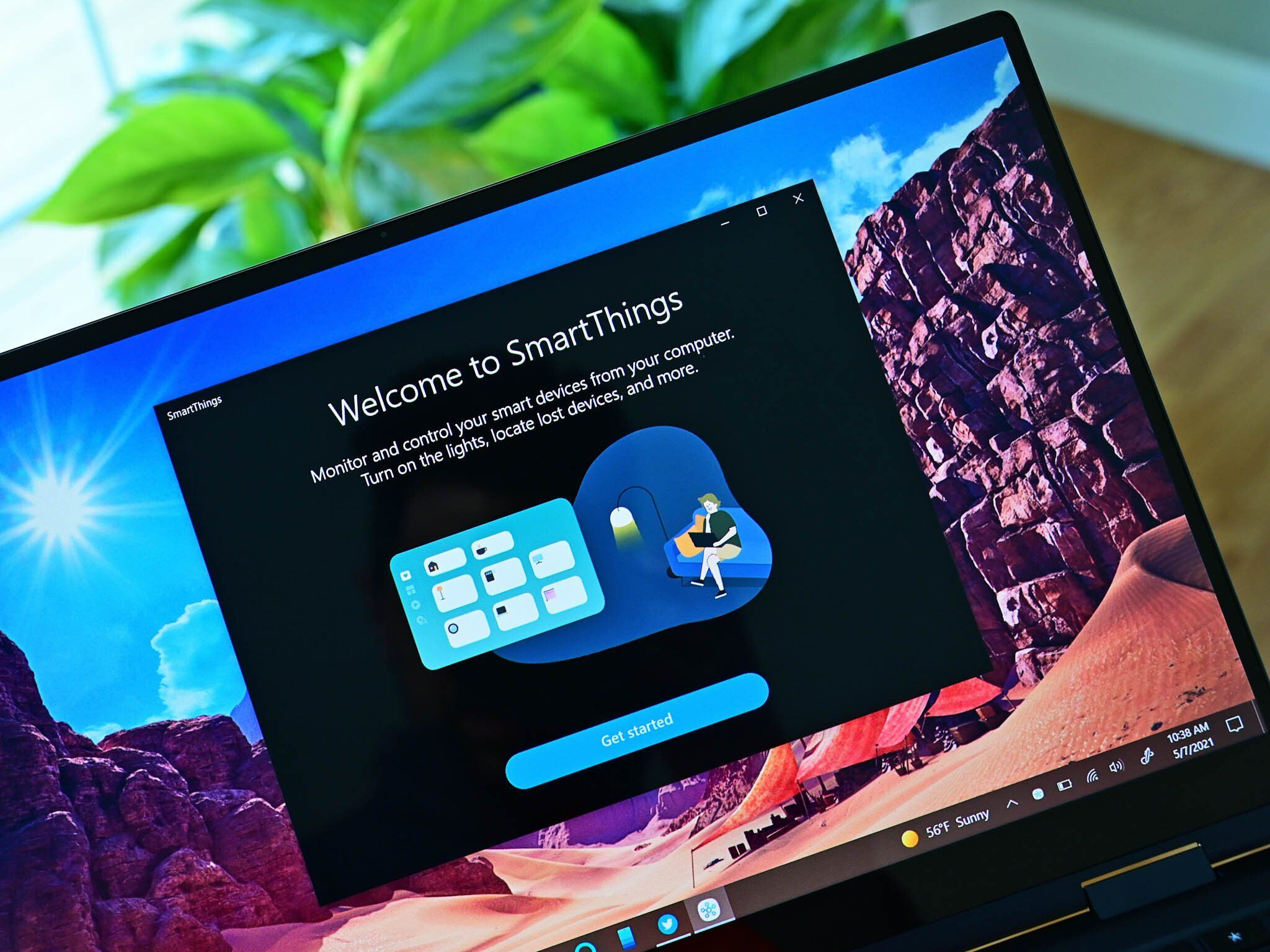
1. SmartThings: The most user-friendly smart home application on Windows
It must be said that Samsung is a brand that truly understands “cross-device control”. The Windows version of SmartThings is more stable than most PC-based smart home software on the market, and it is also closer to the logic of “desktop operation”.
What can you do?
When you’re working overtime writing copy, you don’t need to touch your phone; just tap the taskbar to switch the study lights to “focus mode.”
Want to check if your washing machine has finished spinning? You don’t need to leave your Excel spreadsheet.
Want to turn off the living room air purifier? Just do it in the bottom right corner of the screen.
The power of SmartThings is that it not only supports Samsung home appliances, but also, through the Matter protocol , you can manage almost all Philips Hue, Aqara, Xiaomi devices, and more.
When I first controlled all the appliances in my house on my computer, I suddenly had a feeling that “this is what the future is supposed to be like.”
2. Phone Link: A “Hidden Gem” for Android Users
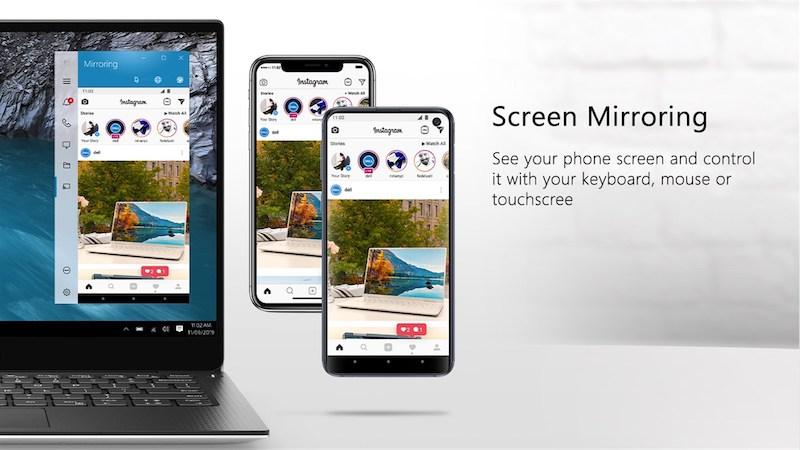
Dell offers excellent support for Android (especially Samsung). Once you connect via Phone Link, you can mirror your phone’s app directly from your computer .
what does that mean?
No PC version of Mi Home? No problem, just use your mouse to tap the phone screen.
Are there any Aqara features that aren’t available on the website? You can still access them on your computer.
You can set up automations on the 27-inch screen, providing an experience several times better than on a mobile phone.
When I set up no-go zones for the robot vacuum or adjust the air conditioner’s airflow on my computer, the precise control I get with a “mouse + large screen” is something a mobile phone can never provide.
II. Advanced Level: Creating a “God’s-eye View Surveillance Wall” using Dell Monitors
Dell’s UltraSharp series is renowned for its accurate color and high resolution. You might buy it for design work or video editing, but you might not have considered that it’s also an ideal home monitoring terminal .
When you integrate your home security system onto Dell’s large screen, it instantly transforms from a “productivity tool” into a “whole-house radar.”
1. Connect front door, backyard, and indoor cameras using a web console.
Many cameras—Google Nest, Eufy, UniFi Protect, etc.—offer powerful web-based backends.
The advantages are very obvious:
Multi-screen real-time monitoring
Lower latency
More features than a mobile app
You can view historical records and live feeds simultaneously.
When I’m working on documents, I often keep a browser pop-up window open and pin the door security camera to the top so that when the delivery person comes, I don’t need to switch screens; I can see it as soon as I look up.
2. PIP (Picture-in-Picture): A hidden gem feature that Dell users often overlook.
Provided the browser supports it, you can display a specific surveillance feed as a floating icon.
Ideal for:
Waiting for takeout
Watch the children’s room
Monitoring the elderly person’s bedroom
What do your pets do at home?
This is one of my most frequently used features, truly achieving “not interrupting what you are doing”.
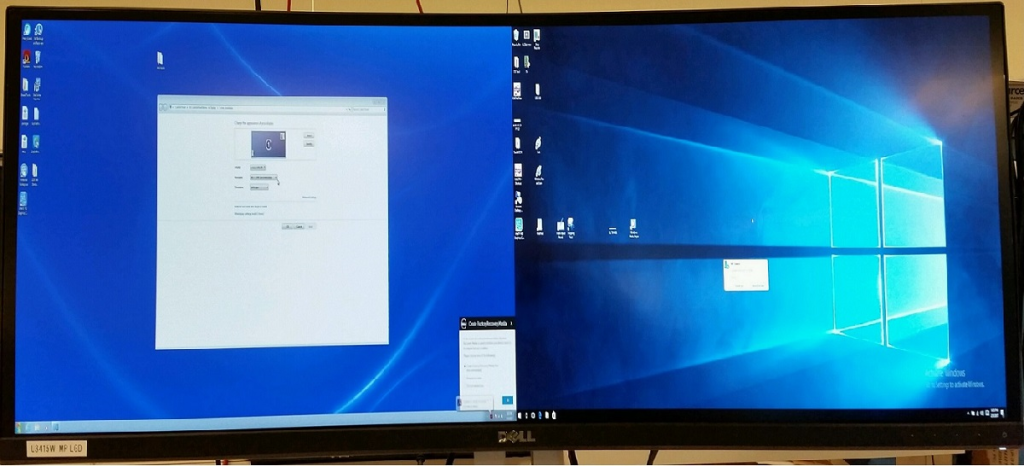
3. Multi-screen environment: Turn the secondary screen into a “whole-house dashboard”
If you are using a dual-screen or even triple-screen setup, you can:
Main screen work
Secondary screen displays family status
The third screen (if any) displays the Home Assistant Dashboard.
You can even create a real-time dynamic dashboard similar to Tesla’s infotainment system:
Indoor temperature and humidity
carbon dioxide concentration
Lighting status in each room
Security sensor data
Temperature control system efficiency
When I first put all this data together on one screen, I had the illusion of operating a spaceship.
III. High-end: Idle Dell computers transformed into Home Assistant servers
(The true “soul” of whole-house intelligence)
If you have old Dell laptops, OptiPlex mini-PCs, or Dell micro-workstations that your company has phased out, please don’t throw them away. They might be more suitable for running Home Assistant (HA) than you think .
I’ve seen many people run HA on Raspberry Pi, but to be fair, while it’s possible to run it, the experience is completely different .
Why are Dell computers ideal for High Availability (HA)?
1. The x86 architecture offers superior performance.
Even eight-year-old models from Dell’s small form factor PCs still completely outperform Raspberry Pi in CPU performance.
Automation runs faster, more stably, and with lower latency.
2. SSDs are more reliable
Raspberry Pi is prone to damage with TF cards, while Dell’s SSDs are far more stable.
Your home operating system can’t afford to fail so easily.
3. Security and Privacy
Home Assistant is designed for localized operation.
Data is not uploaded to the cloud.
It can be used even when the internet is offline.
Automated response speed reaches millisecond level
Suitable for users who are sensitive to privacy
4. Mandatory integration of cross-brand devices (the real magic)
HA’s greatest appeal is that it can “force together” brands that are not originally compatible.
for example:
Xiaomi + HomeKit
Apple HomeKit + Philips Hue
Aqara Zigbee Gateway + LIFX Wi-Fi Bulb
Google Nest doorbell + HomeKit security automation
It acts like a “device translator,” allowing all brands to speak the same language.
When I first achieved “Xiaomi door and window sensor → HomeKit scene linkage”, the thrill of “breaking through ecosystem barriers” was hard to describe.
In conclusion: Dell’s value extends far beyond just work.
Smart homes shouldn’t just be a mobile app or a few vague voice commands from a smart speaker.
A true “whole-house intelligence” system has a brain.
And your Dell:
It could be your desktop console.
It could be your monitoring screen.
It could be your automation server
It could even be the digital hub of the entire family.
Extending productivity tools into everyday life is, in my opinion, one of the most romantic ways to use technology.
If you’re willing to put in a little effort, you’ll find that:
Your Dell is more than just a computer.
It’s the most underrated smart device in your home.
https://www.fmdnqi.com/the-ultimate-guide-to-maximizing-your-dell-computers-potential/